Showing posts with label Photoshop. Show all posts
Wednesday, May 11, 2016
Tuesday, May 10, 2016
Personal Project
ONW Snapchat Filter
This is the geo-filter I made for the ONW campus using adobe illustrator. This was the final version I decided on and it was approved after three weeks.
These are all the designs I made but decided not to use.
Wednesday, December 16, 2015
Business Cards & Post Card
Business Cards
Card 1
Card 2
Card 3
Card 4
Walkway is the font used on the business cards. All the projects presented today were made in AI. This was the 2015 Fall final for graphic design. We showed the skills we learned this semester in making patterns and the logos we made in old projects to design these cards.
Post Card
http://mrg.bz/tBIa5q
Thursday, December 10, 2015
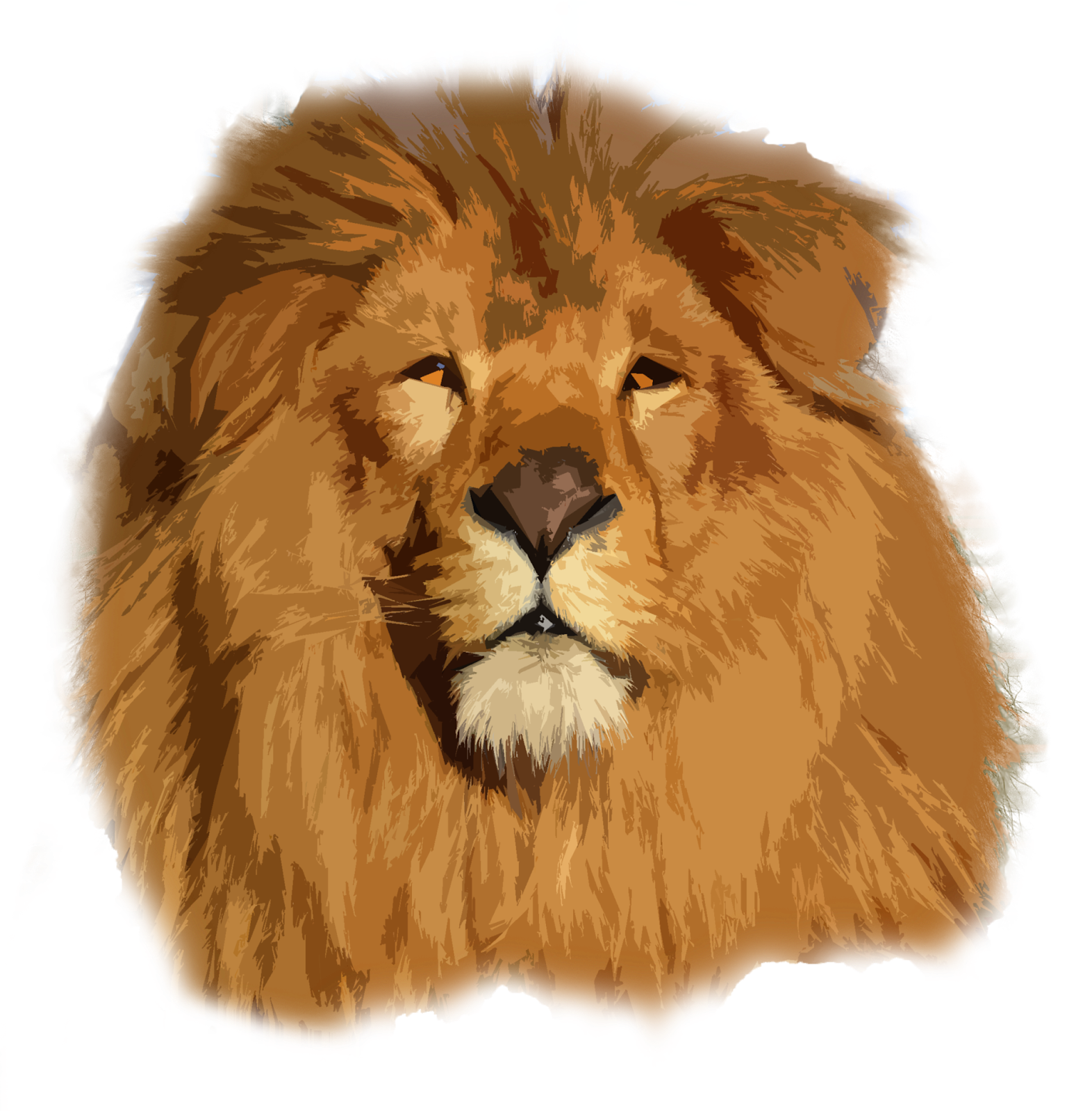
How to use cutout filter in Photoshop
1
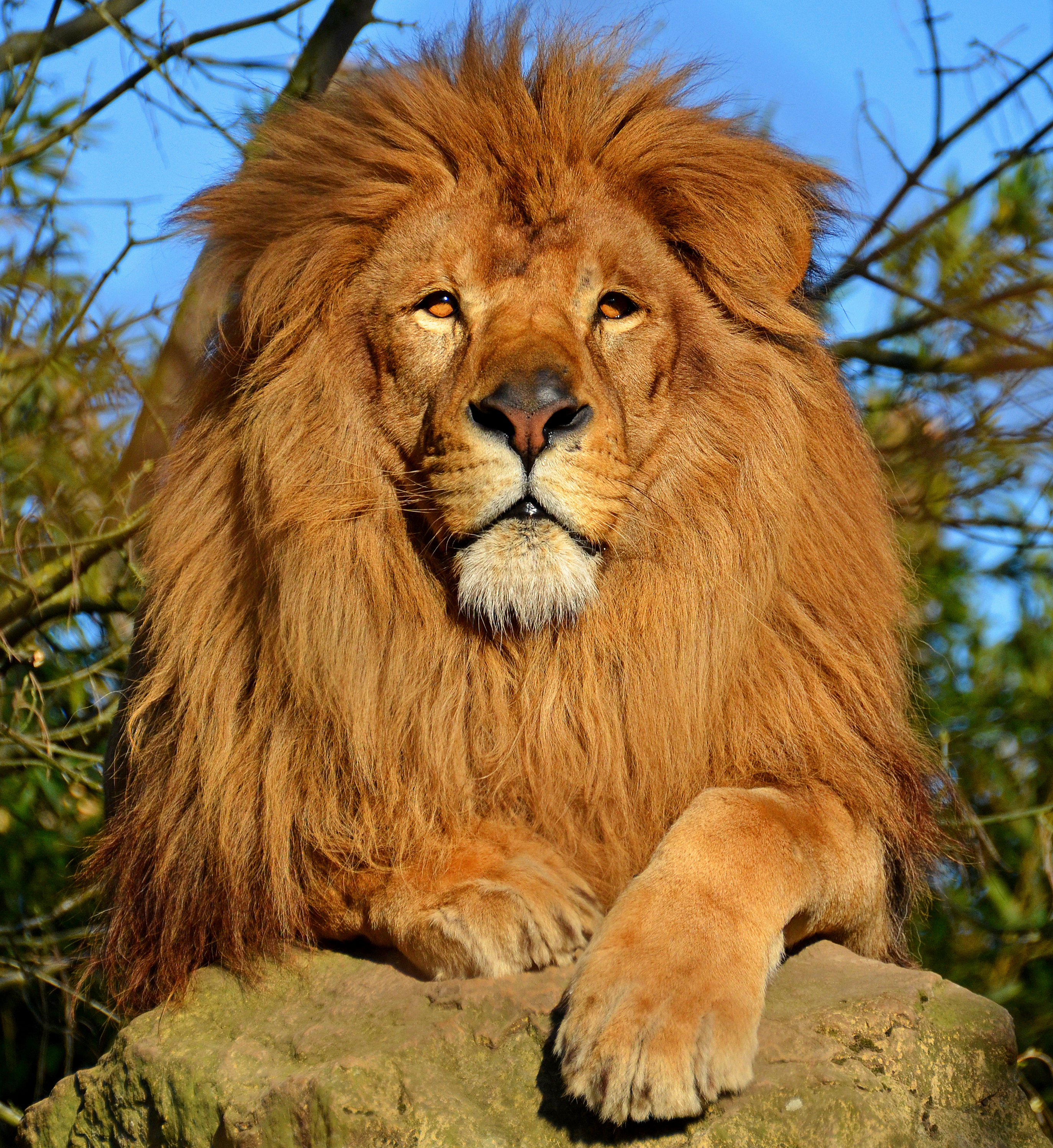
Get a free use image on Google by choosing "Labeled for noncommercial reuse with modification" if it is for personal use(Remember there are other ways to obtain images like MorgueFiles or if you take them yourself.)
2
Download the image and make sure to attribute to the original author if that is what they want.
3
Open the image in Photoshop and remove the background.
4
Open up the filter gallery on photoshop Filter>Filter Gallery
5
Choose cutout and the right settings you want for you own image
6
Click on ok and save your image, you're done! Don't forget to remove pixel fringe from the image if that is a problem.
Original Image obtained from:
By Clément Bardot (Own work) [CC BY-SA 4.0 (http://creativecommons.org/licenses/by-sa/4.0)], via Wikimedia Commons
https://upload.wikimedia.org/wikipedia/commons/b/b5/Lion_d%27Afrique.jpg
Get a free use image on Google by choosing "Labeled for noncommercial reuse with modification" if it is for personal use(Remember there are other ways to obtain images like MorgueFiles or if you take them yourself.)
2
Download the image and make sure to attribute to the original author if that is what they want.
3
Open the image in Photoshop and remove the background.
4
Open up the filter gallery on photoshop Filter>Filter Gallery
5
Choose cutout and the right settings you want for you own image
6
Click on ok and save your image, you're done! Don't forget to remove pixel fringe from the image if that is a problem.
By Clément Bardot (Own work) [CC BY-SA 4.0 (http://creativecommons.org/licenses/by-sa/4.0)], via Wikimedia Commons
https://upload.wikimedia.org/wikipedia/commons/b/b5/Lion_d%27Afrique.jpg
Thursday, December 3, 2015
Adding a Shadow to an object
In this project we learned how to add a drop shadow to everyday objects. You start by using the selection tool to remove an object from an image. Once you have the apple isolated you can copy it and transform it into the shape you want the shadow to be. When you have that chosen you can make a black to transparent gradient. To finish the project up you can add some blurs to the image and place it onto another background.
Subscribe to:
Posts (Atom)